
Platform
Article editor field map
Every box and field that Aeon News adds to the article editor, what to enter and what it changes for the reader.
Last updated 14 October 2026
Use this guide when preparing an article for publication. Fields are optional unless your editorial routine says otherwise; an empty field means the article’s normal presentation. The screenshots come from the Aeon Daily demo site, with fictional content.
Genre & writers
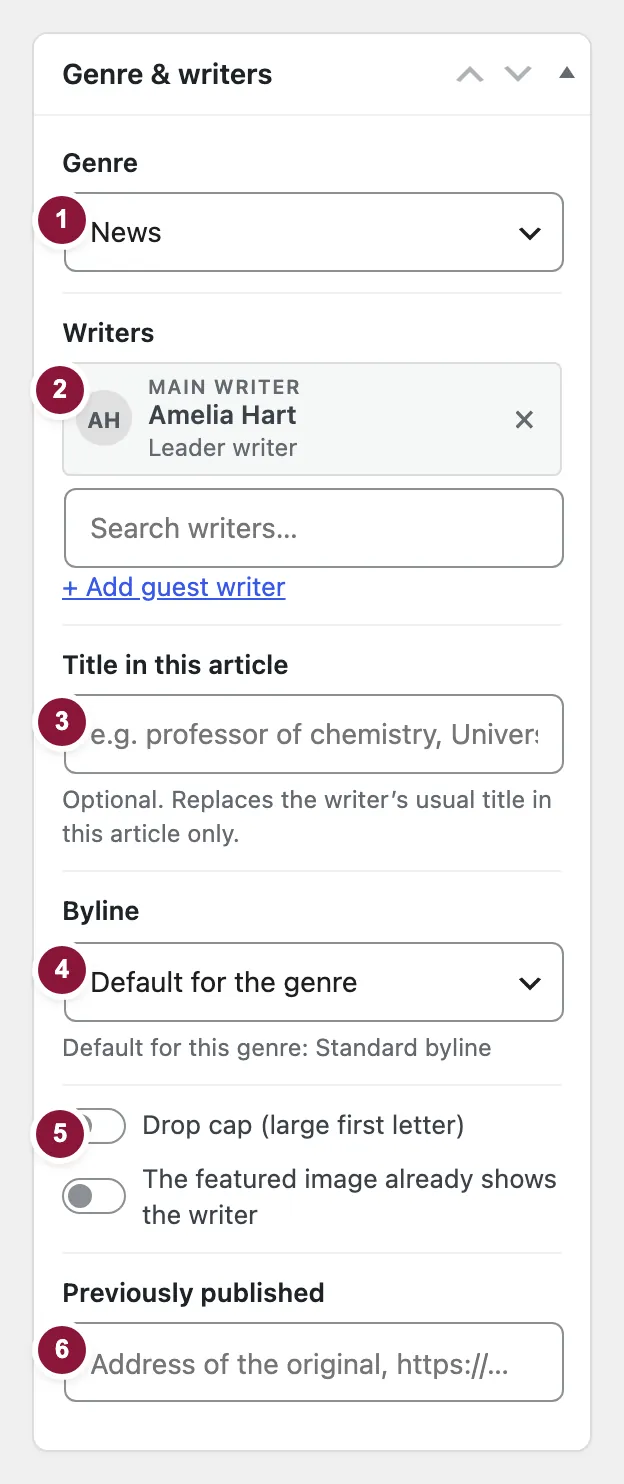
| Field | What to enter | Effect and checks |
|---|---|---|
| Genre | News, Editorial, Comment, Analysis, Column, Opinion piece, Reply, Letter or Review. | Shown as a label to readers and used by the opinion section. Choosing a genre suggests a byline presentation and drop cap. |
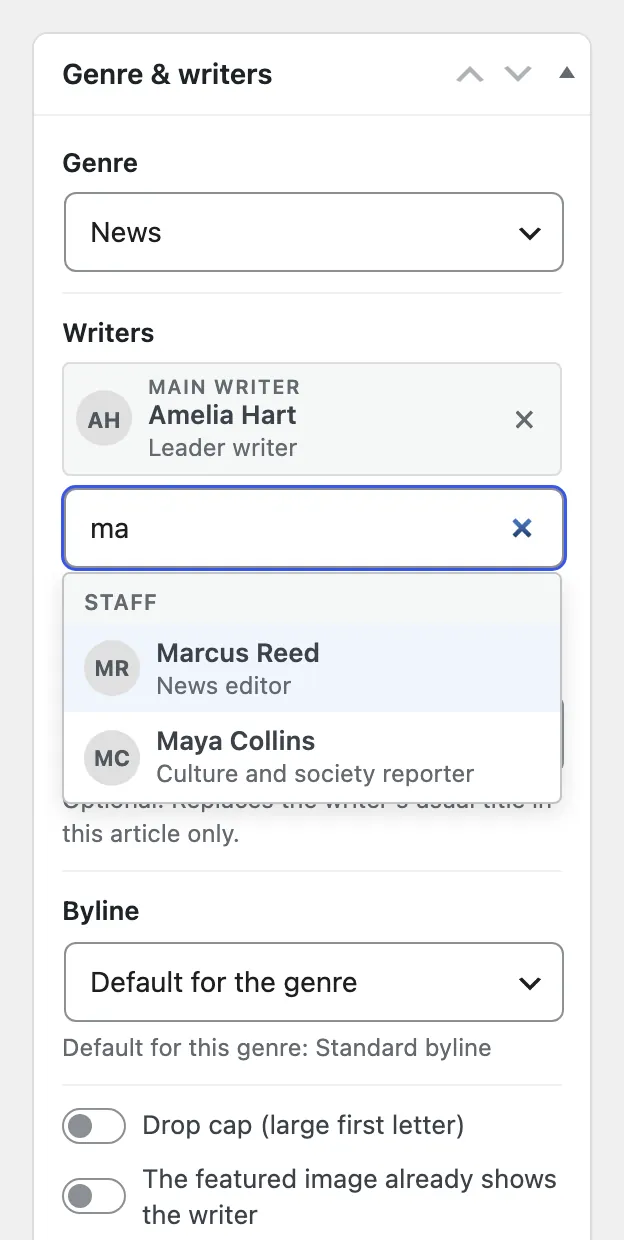
| Writers | Search the register and pick one or more writers. Staff are listed first. | The first writer is the main writer. Drag to change the order. Add guest writer creates a new external writer without leaving the article. |
| Title in this article | For example “professor of chemistry, University of Gothenburg”. | Replaces the writer’s usual title, in this article only. |
| Byline | Default for the genre; Standard byline; Standard byline, signature box after the text only; Columnist; Columnist, portrait on the front page; Guest writer; Unsigned. | Decides how the writer is presented above and below the text. Default for the genre uses the genre’s usual presentation, shown under the field. Use Unsigned sparingly and according to the newsroom’s accountability policy. |
| Drop cap | On or off. | A large first letter in the first paragraph. On by default for columns. |
| Featured image already shows the writer | On when the featured image is a portrait of the writer. | Prevents the portrait from being shown twice. |
| Previously published | The address of the original, if the text was first published elsewhere. | Fills in source and date, and lets you decide which address search engines treat as the original. See republishing. |
Front page & layout
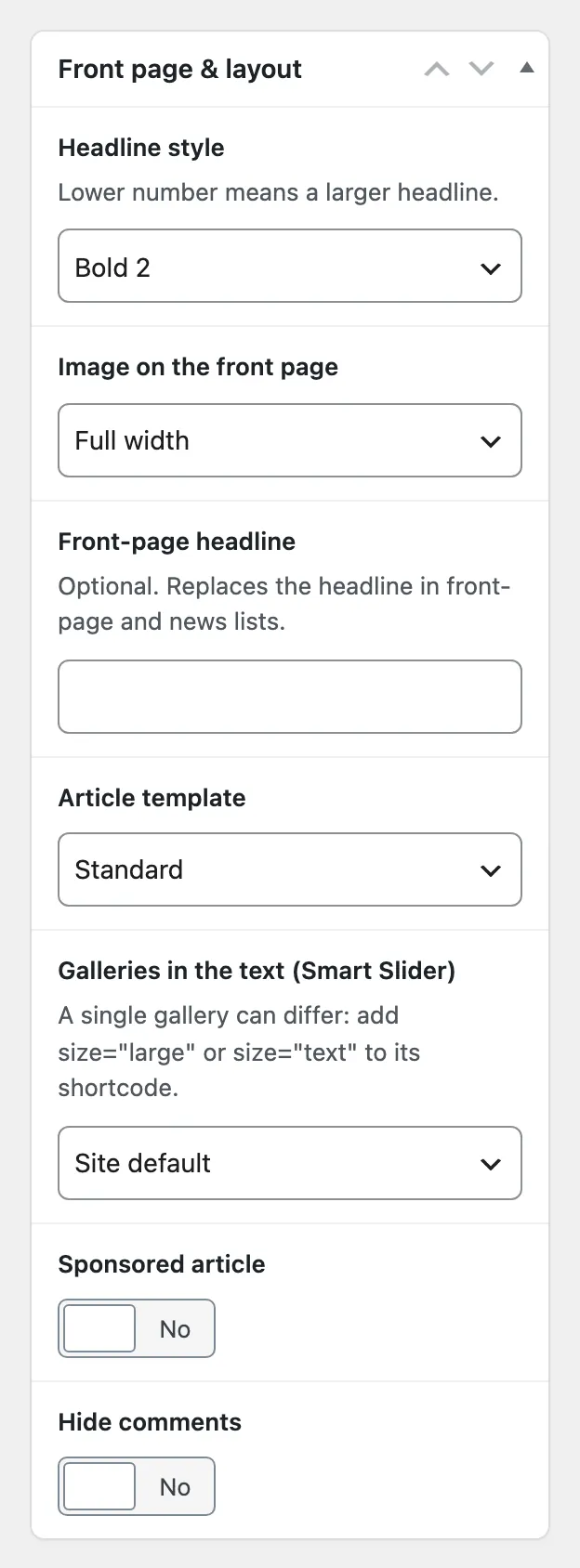
| Field | What to enter | Effect and checks |
|---|---|---|
| Headline style | Bold 1–3 or Light 1–3. | A lower number gives a larger headline on the front page. Use the newsroom’s agreed hierarchy. See news dimensioning. |
| Image on the front page | Full width, right aligned, no image, or a columnist variant. | Columnist variants need a portrait on the writer. Preview the front page after a change. |
| Front-page headline | A shorter headline with the same meaning. | Used on the front page and in news lists. It must not make a new claim. |
| Article template | Standard, Full width or Premium. | Full width and Premium suit features and investigations. See premium articles. |
| Galleries in the text | Site default, Large (wider than the text on desktop) or Width of the text. | Large lets a gallery in the text be wider than the text on desktop. A single gallery can also set this in its shortcode. |
| Sponsored article | On for approved sponsored or native content only. | Gives the article sponsored labelling and can change modules around it. |
| Hide comments | On to fold the comments behind a button. | Readers open them with “Show comments”. Commenting itself stays as the site has it. |
Categories, topics and visibility
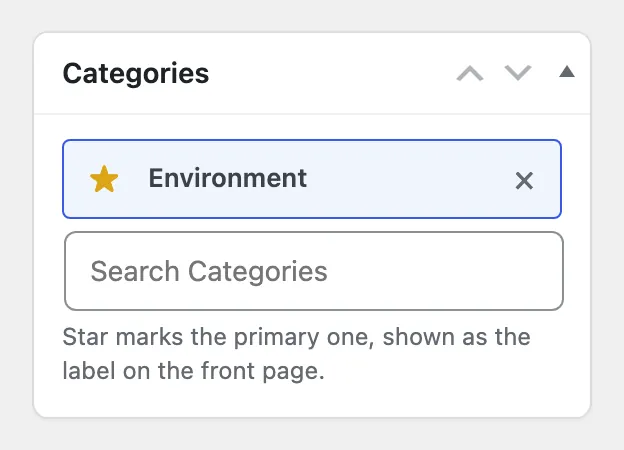
Categories and Article topics are searchable. Star the primary category and the primary topic: the primary topic is the label on the front page and decides news-thread membership.
Visibility decides where the article appears: Front page (the main feed), Latest news, Fixed 3rd position on the front page, Sponsored on the front page and Featured posts in the third column. Apply only the terms your desk routine requires.
News thread
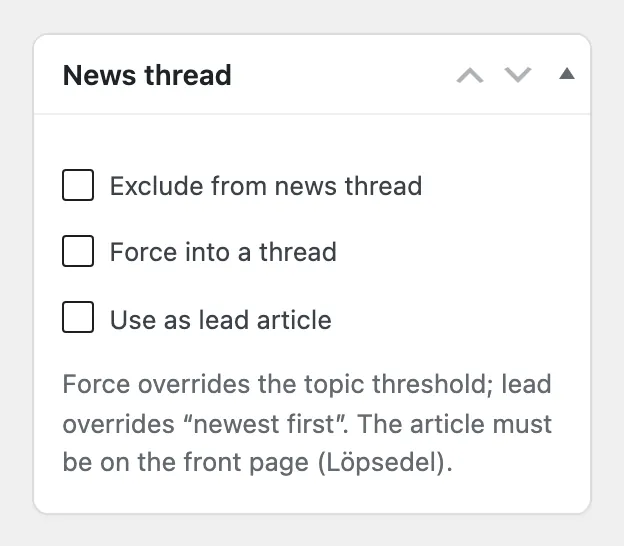
Exclude from news thread keeps the article on its own. Force into a thread ignores the topic’s minimum number of articles. Use as lead article makes it the thread’s main article instead of the newest one. The article must be on the front page.
Article
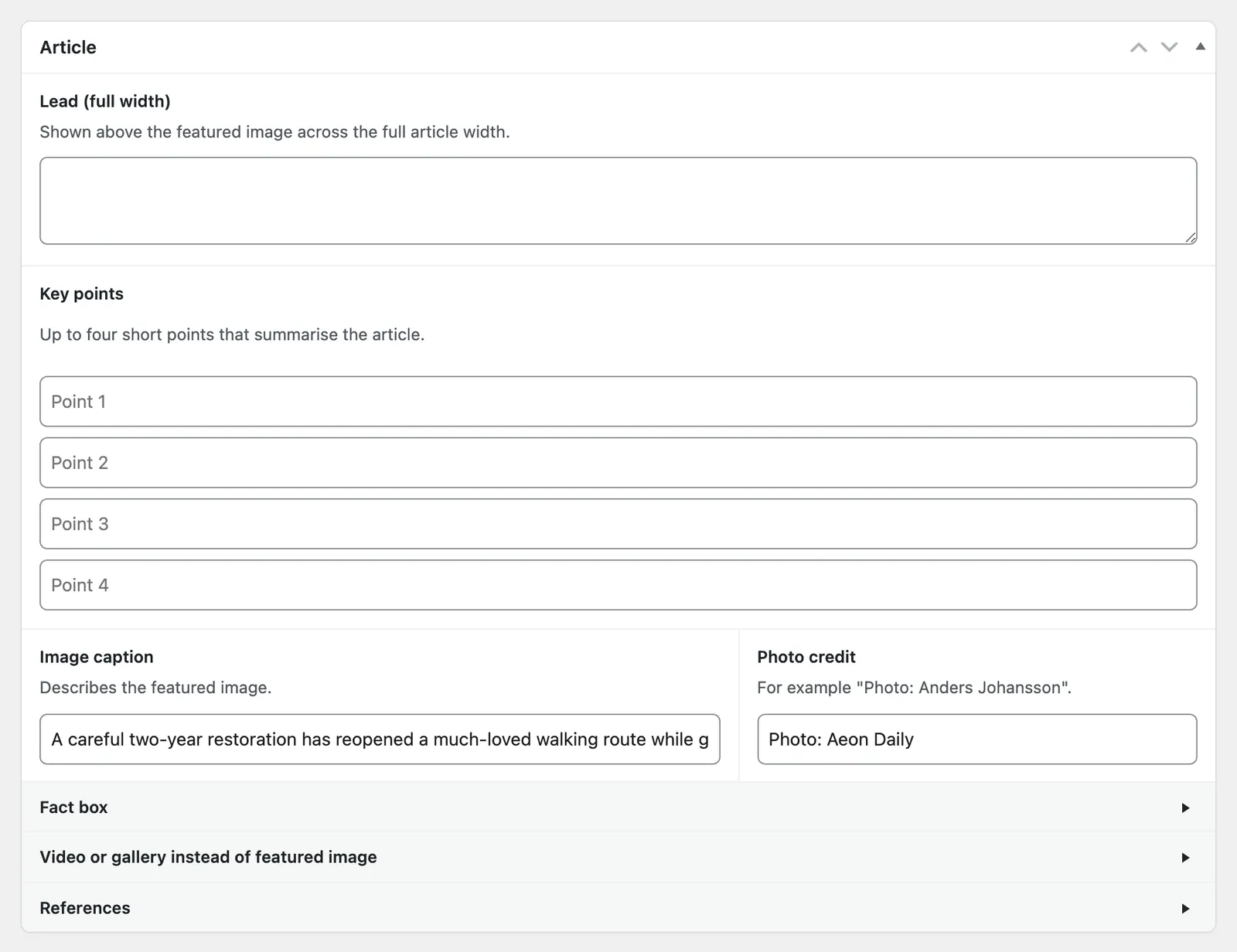
| Field | What to enter | Effect and checks |
|---|---|---|
| Lead (full width) | A prominent introduction. | Shown above the featured image across the full article width. Keep it distinct from the standfirst. |
| Key points | Up to four verified points, one per field. | Shown as a summary. Fill them in order: display stops at the first empty point. |
| Image caption and Photo credit | Caption and the agreed credit, for example “Photo: Anders Johansson”. | Check that the caption describes the published image. |
| Fact box | Background, a timeline or a short presentation; can include images. | Shown beside or within the article. Keep it concise and sourced. |
| Video or gallery instead of featured image | An approved video or gallery. | Replaces the featured image at the top of the article. |
| References | Numbered sources, marked in the text with superscript numbers. | Shown after the signature; readers see the first lines and can expand the full list. |
| Hide featured image in article | On to keep the image for listings only. | The image is still used on the front page and when shared. |
Internal notes
Internal notes are for working notes that readers must never see. They are excluded from the public API. Do not enter passwords, protected-source information or personal data.
Before publishing
- Preview the article and its front-page context after changing presentation fields.
- Confirm image rights, credits, captions and embeds.
- Check that the front-page headline, key points, writers and genre match the editorial decision.
- Confirm section, primary topic and publication time, then publish or schedule.