
Platform
The article editor and its controls
An orientation to the article editor in Aeon News, where writing, genre, writers, presentation and placement each have a clear place.
Last updated 14 October 2026
Aeon News extends the WordPress article editor with controls designed for a daily newspaper. Writing stays in the familiar editor. Around it, a small number of boxes decide what kind of text the article is, who wrote it, how it is presented and where it appears.
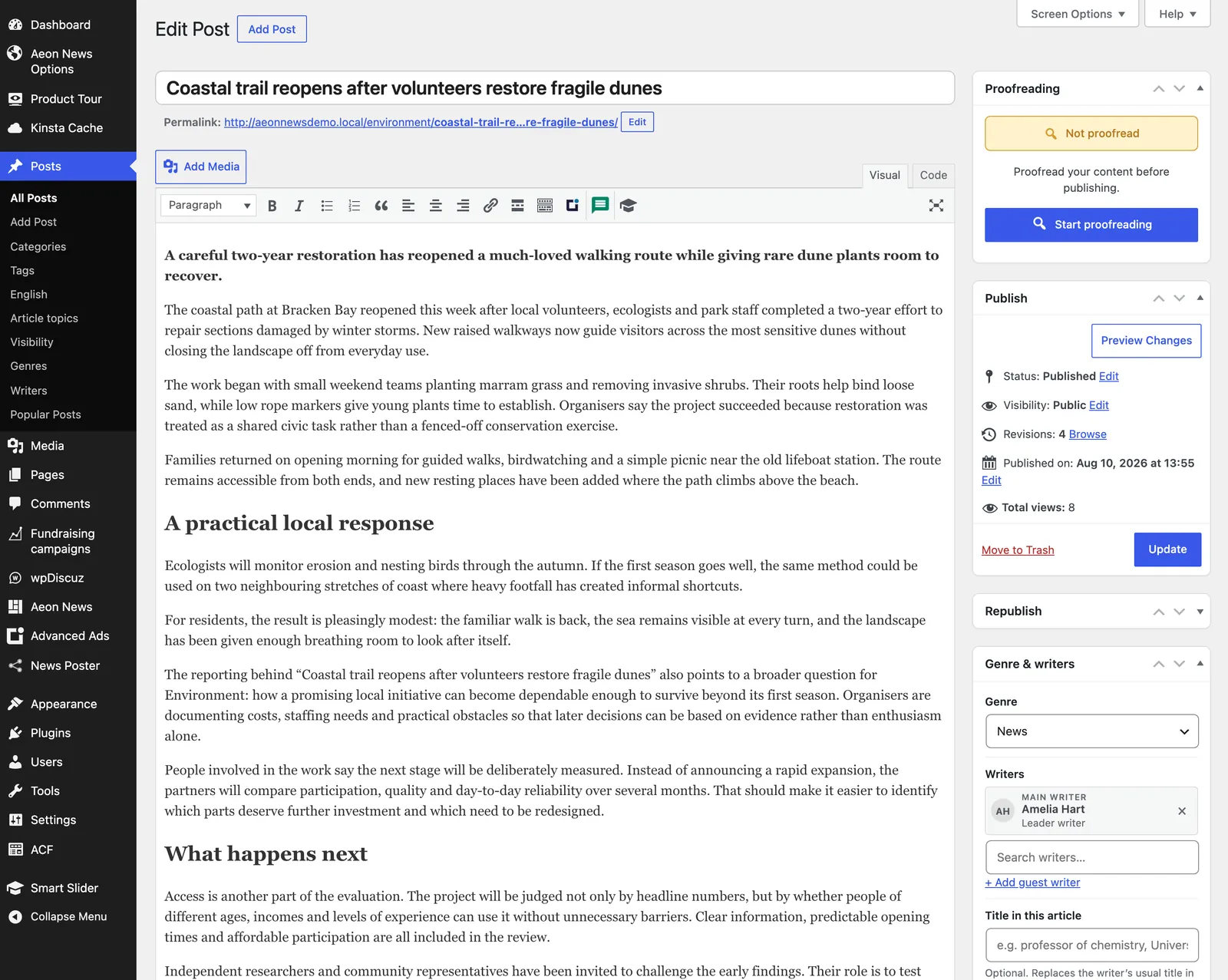
Where everything is
| Box | Where | What it decides |
|---|---|---|
| Proofreading | Sidebar, top | Optional AI review of the text and fields before publishing. See Proofreading. |
| Publish | Sidebar | Draft, review, schedule or publish, as in WordPress. |
| Republish | Sidebar, published articles | Lift an older article back onto the front page, now or later. See republishing. |
| Genre & writers | Sidebar | Genre, writers in order, title in this article, byline presentation, drop cap and original source. See writers and bylines. |
| Front page & layout | Sidebar | Headline style, front-page image, front-page headline, article template, gallery width, sponsored and comments. |
| Categories and Article topics | Sidebar | Section and topics, searchable, with a star for the primary one. |
| Visibility | Sidebar | Front page, Latest news and fixed or sponsored positions. |
| News thread | Sidebar | Keep the article out of a thread, force it in, or make it the lead. |
| Article | Main column, under the text | Full-width lead, key points, image caption and credit, fact box, video or gallery and references. |
| Excerpt and Internal notes | Main column | The standfirst, and notes that readers never see. |
Less-used boxes, such as tags and the English edition, are collapsed or hidden by default and can be shown under Screen Options. Screen Options also has a button to restore the standard layout.
Recommended working order
- Write the headline, standfirst and body.
- Choose genre and writers in Genre & writers.
- Choose the section and article topics, and star the primary topic.
- Add the featured image and check caption, credit and crop.
- Set headline style and front-page image in Front page & layout, and placement in Visibility.
- Add key points, a fact box or references only when they help the reader.
- Preview both the article and its front-page context before publishing.
A small-looking choice can change headline size, image position, front-page placement or the modules readers see around an article. Preview after changing presentation fields.
Publishing and presentation are separate decisions
Publishing makes a story available, but does not decide its prominence. The same article can appear with a large lead image, a smaller right-aligned image, no image in the main feed, or only in Latest news. Editors can publish continuously while deciding which events should dominate the front page.
Searchable topics and categories
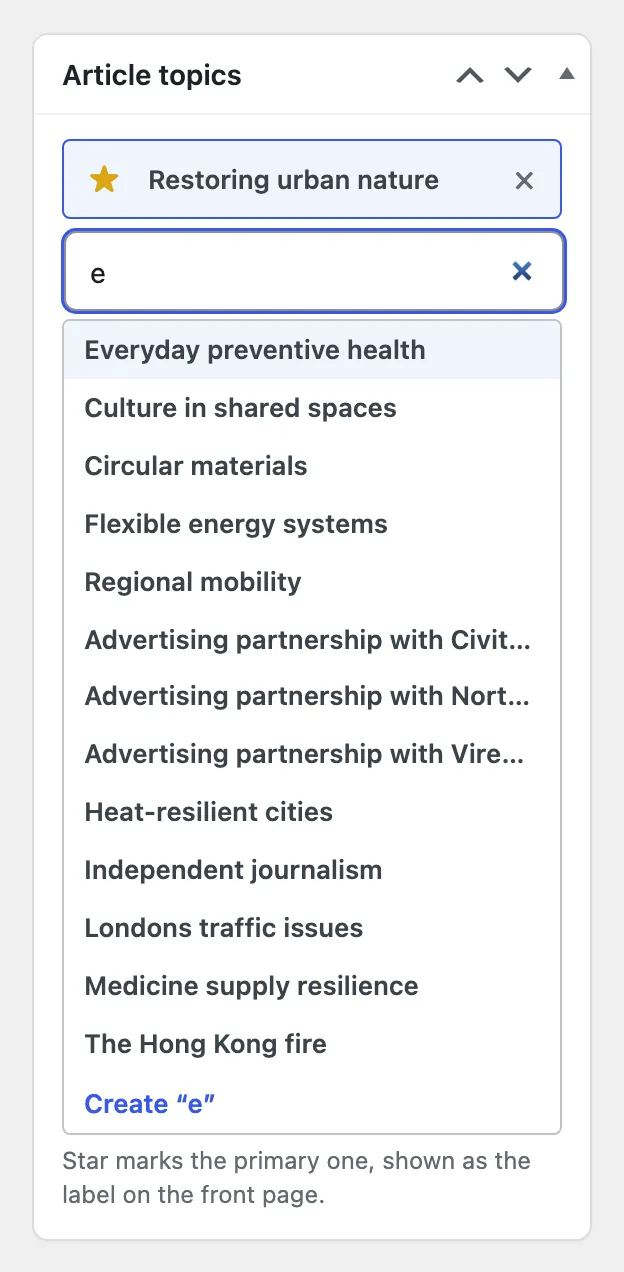
Long lists of topics and categories are replaced by a search field. Type a few letters, pick the topic, and star the one that should be the article’s primary topic. The primary topic becomes the label on the front page and decides which news thread the article belongs to.
Previews show what you have not saved
The preview reads the latest unsaved version of the article, including genre, writers, presentation and drop cap, so what you see in the preview is what readers will get.
Continue with the field map for every field in detail, or with headlines, introductions and summaries.